
Download QR Journal – Fast QR Code Scanner for Desktop, Secure, Free & Easy
Overview: Why QR Journal Is a Handy Desktop Companion
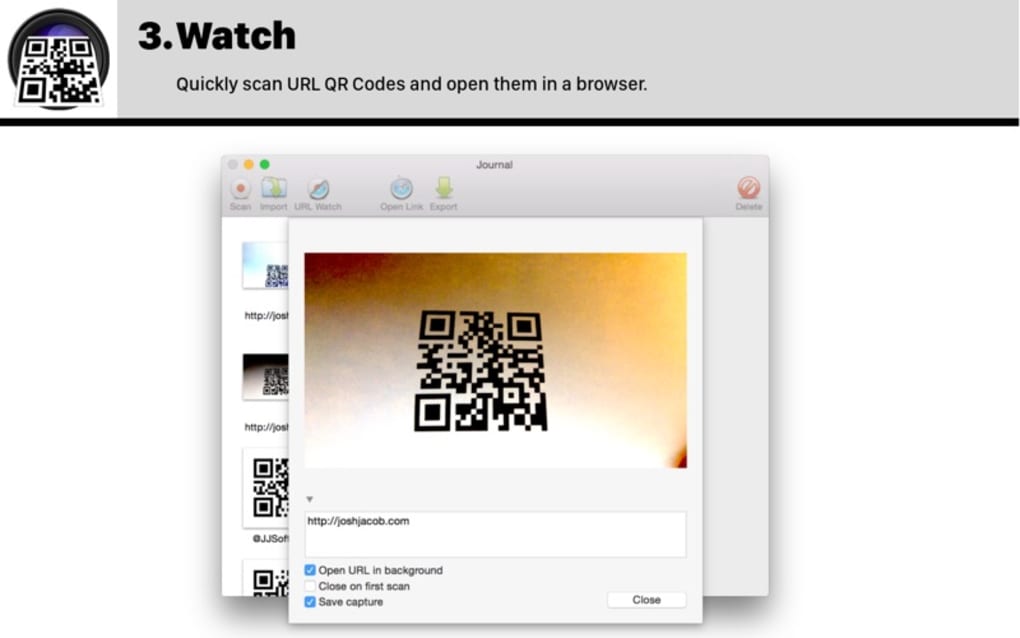
QR Journal is a lightweight macOS utility that brings QR‑code scanning to your desktop or laptop camera. While most users rely on smartphones to read QR codes printed on flyers, business cards, or product packaging, QR Journal lets you hold a printed code in front of your iSight (or any built‑in) camera and instantly opens the linked URL without ever pulling out your phone. The app also supports drag‑and‑drop of image files that contain QR codes, making it a versatile tool for designers, marketers, and developers who work with QR assets daily.
Its minimalistic interface focuses on a single purpose – scanning – which translates into a fast, secure, and distraction‑free experience. Because it runs locally, there is no need to upload images to third‑party services, preserving privacy and eliminating the risk of data leakage. Whether you need to test QR codes during a product launch, verify a batch of printed codes in a print shop, or simply prefer a desktop workflow, QR Journal offers a reliable solution that integrates seamlessly with macOS’s native camera framework.
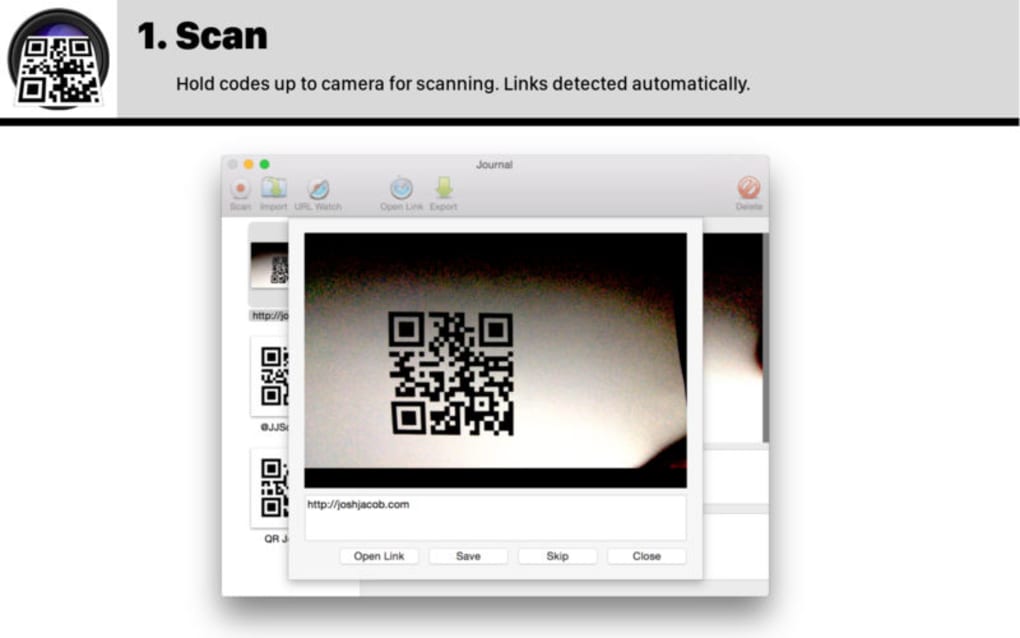
The application’s simplicity is its strongest selling point. Upon launch, a concise dialog asks whether you want to scan a printed QR code or read a saved image file. A single click starts the camera feed, and the moment the code is detected, the decoded URL appears with a clickable link.
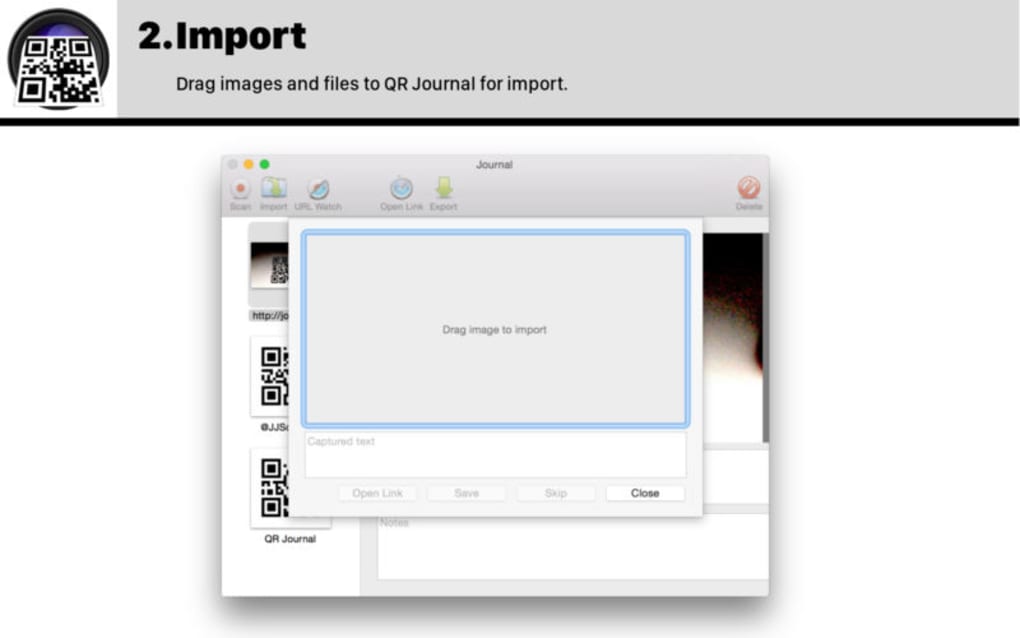
For file‑based scans, dragging an image onto the app window triggers the same decoding process. The result is displayed in a clean overlay, allowing you to copy the link, open it in your default browser, or share it directly. QR Journal is built with Swift, ensuring smooth performance on modern macOS versions, and it receives regular updates to stay compatible with the latest security patches and camera APIs.
In short, QR Journal transforms a routine task into a swift, secure, and completely desktop‑centric workflow.
Key Features That Make QR Journal Stand Out
- Instant camera scanning: Use your Mac’s built‑in iSight or external webcam to read printed QR codes in real time.
- Drag‑and‑drop image support: Decode QR codes from PNG, JPG, or PDF files by simply dropping them onto the app window.
- One‑click URL launch: Decoded URLs appear as clickable links that open in your default browser instantly.
- Privacy‑first design: All decoding happens locally; no data is sent to external servers.
- Lightweight footprint: The app occupies less than 15 MB on disk and consumes minimal RAM.
- Automatic updates: Built‑in updater keeps the software compatible with the latest macOS releases.
- Customizable scanning area: Adjust the camera view to focus on small or large QR codes for better accuracy.
- Multi‑language support: Interface available in English, Spanish, French, and German.
QR Journal’s feature set is intentionally narrow, focusing on speed and reliability rather than feature bloat. The instant camera scanning leverages macOS’s AVFoundation framework, delivering sub‑second detection for most standard QR codes. For developers and designers who frequently generate QR assets, the drag‑and‑drop capability eliminates the need for separate online tools, streamlining the workflow.
The clickable URL overlay not only saves time but also reduces the chance of mistyping a link when copying it manually. Because the decoding algorithm runs entirely on your machine, you retain full control over the data, which is crucial for businesses handling confidential marketing campaigns. The lightweight nature of QR Journal means you can keep it in your menu bar or dock without worrying about performance impacts, even on older MacBook models.
Moreover, the automatic update mechanism ensures you stay protected against any emerging security vulnerabilities without having to search for new releases manually. All these features combine to create a tool that feels native to macOS while offering capabilities that are rarely found in desktop QR readers.
Installation & Usage: Step‑by‑Step Guide
Downloading and Installing QR Journal
To get started, visit the official QR Journal website or the Mac App Store and click the Download button. The installer is a standard .dmg package that mounts automatically. Drag the QR Journal icon into your /Applications folder, then eject the disk image. macOS may prompt you to confirm that you trust the developer; simply click “Open” to proceed. Once installed, you can launch the app from Launchpad, Spotlight, or the Applications folder.
First‑time Setup and Permissions
Upon first launch, macOS will request permission to access your camera. Grant access to enable real‑time scanning. If you plan to use the drag‑and‑drop feature, no additional permissions are required, as the app reads files directly from the file system. A short tutorial overlay appears, explaining the two primary modes: “Scan Printed QR Code” and “Read QR Image File.” You can dismiss the overlay and the app will remember your last chosen mode for future sessions.
Scanning a Printed QR Code
Select the “Scan Printed QR Code” option, then position the QR code within the camera’s viewfinder. The app automatically focuses and begins analyzing each frame. Within seconds, a green outline appears around the detected code, and the decoded URL pops up at the bottom of the window. Click the link to open it in your default browser, or right‑click to copy the URL to the clipboard. QR Journal also provides a “Save Result” button, allowing you to log the scan in a simple CSV file for later reference.
Reading a QR Code from an Image File
Drag any image containing a QR code onto the QR Journal window. The app instantly processes the file and displays the URL, just as it would with a live scan. Supported image formats include PNG, JPEG, BMP, and even PDF files that contain a single QR image. If the code cannot be read, QR Journal shows a helpful error message and suggests adjusting the image resolution or contrast before trying again.
Troubleshooting Common Issues
If the camera fails to initialize, ensure no other application is using the webcam and that macOS privacy settings still allow QR Journal access. For blurry scans, clean your webcam lens and increase lighting. In case the app crashes, reinstall the latest version from the official site. The built‑in “Help” menu links to a comprehensive knowledge base and contact form for direct support.
Compatibility, Pros & Cons, and Expert Review
Supported Operating Systems: macOS 10.13 High Sierra and later (including macOS Ventura, Sonoma, and future releases). The app is optimized for Intel and Apple Silicon Macs, running natively on both architectures.
Pros
- Fast, real‑time QR scanning with built‑in camera.
- No internet connection required; all processing is local.
- Lightweight and free to use.
- Drag‑and‑drop support for image files.
- Minimalistic UI reduces distraction.
- Regular updates keep it compatible with new macOS versions.
Cons
- Only available for macOS; no Windows or Linux version.
- Lacks advanced features such as batch scanning or barcode support.
- Relies on a functional webcam; older Macs without a camera cannot use live scanning.
- No built‑in history viewer beyond manual CSV export.
QR Journal delivers exactly what it promises: a fast, secure, and free way to decode QR codes on a Mac. Its focus on a single function means there’s no learning curve, and the local processing model gives peace of mind for privacy‑conscious users. While the lack of Windows support and advanced batch features may limit its appeal for power users, the app excels in its niche. For designers, marketers, or anyone who frequently works with QR codes on a desktop, QR Journal is an indispensable addition to the toolbox.
FAQ – Frequently Asked Questions About QR Journal
Can QR Journal scan QR codes from a video or animated GIF?
No. QR Journal currently supports static images (PNG, JPEG, BMP, PDF) and live camera input. Animated formats are not processed.
Is QR Journal completely free or does it have a paid version?
QR Journal is free to download and use. There are no hidden fees, in‑app purchases, or subscription models.
Will QR Journal work on a Mac without a built‑in camera?
Yes, you can still use the drag‑and‑drop image feature to decode QR codes from files, even if your Mac lacks a webcam.
How secure is the QR code decoding process?
All decoding happens locally on your computer; no data is sent to external servers, ensuring maximum privacy and security.
Can I export a log of scanned QR codes?
Yes. QR Journal includes a “Save Result” button that creates a simple CSV file containing the scanned URL, timestamp, and source type.
Conclusion: Should You Download QR Journal?
If you regularly interact with QR codes and prefer a desktop‑first workflow, QR Journal is a perfect match. Its instant scanning, privacy‑first architecture, and zero‑cost model make it a compelling alternative to smartphone‑only solutions. While it doesn’t cater to Windows users or offer batch processing, its focused design ensures a smooth, distraction‑free experience on any Mac. Download QR Journal today and streamline your QR code workflow with a secure, fast, and free tool that works right from your desk.
Click here to download QR Journal now and start scanning QR codes instantly on your Mac.







